
Upon completion of this Canva Lesson, you will be able to:
- Start Canva.
- Understand the elements of the Canva editor window.
- Rename a Canva file.
- Navigate through a canvas.
- Change views.
- Use the Editor options in the left pane.
- Use the toolbar.
- Adjust elements
- Add uploads
- Use templates
- Share the file in various ways
Project 5-1
- Open the Canva by logging in with your school issued Google account.
- In the upper left corner, click the Create button.
- In the popup box, scroll down on the left side and select the Upload option.
- Navigate to your Media folder and select your 5-1 Start file.
- Utilize your learning about elements, shapes, text, and layering to add to and create the design as shown below.
- Share the file as Project 5-1-(Your Initials) in a PDF Standard file type to your Canva folder.

Project 5-2
- Open the Canva by logging in with your school issued Google account.
- In the upper left corner, click the Create button.
- In the popup box, scroll down on the left side and select the Upload option.
- Navigate to your Media folder and select your 5-2 Start file.
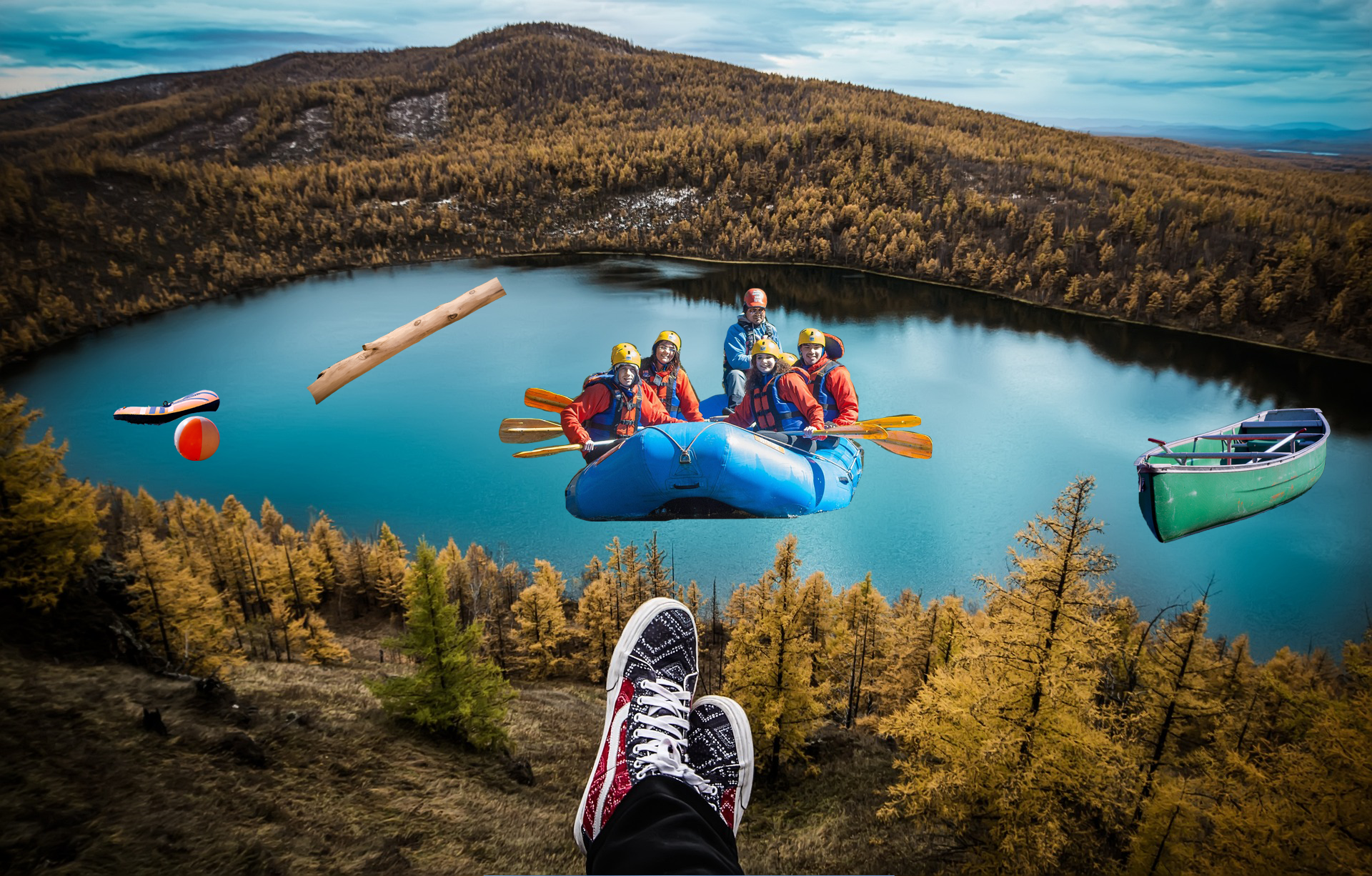
- Utilize the BeachBall, Boat, Log, Raft, and Tube files and your learning to add to and create the design as shown below.
- Share the file as Project 5-2-(Your Initials) in a PDF Standard file type to your Canva folder.
Project 5-3
- Open the Canva by logging in with your school issued Google account.
- In the upper left corner, click the Create button.
- In the popup box, scroll down on the left side and select the Upload option.
- Navigate to your Media folder and select your 5-3 Start file.
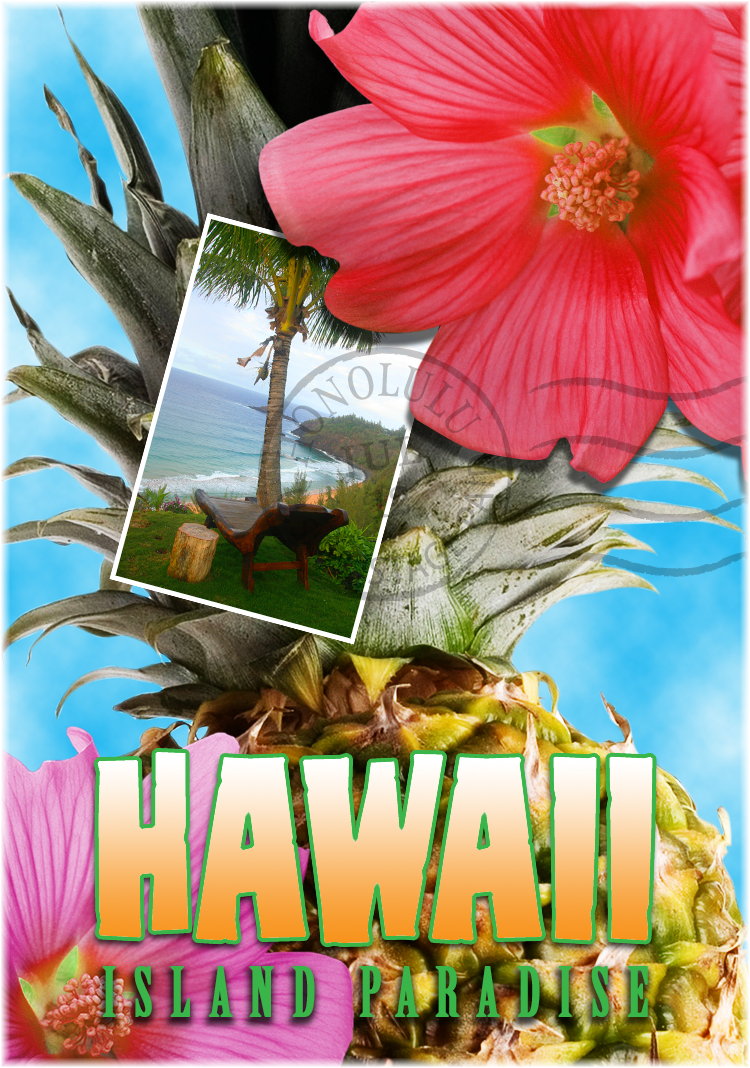
- Utilize the Flower, Flower2, Pineapple, and Postage files and your learning about layers, elements, shapes, text, effects, and fill color to add to and create the design as shown below.
- Share the file as Project 5-3-(Your Initials) in a PDF Standard file type to your Canva folder.
Project 5-4
- Open the Canva by logging in with your school issued Google account.
- In the upper left corner, click the Template button.
- In the Search millions of templates, find a predesigned advertisement for a pizza restaurant.
- Using your image files from your Google Sites folder for your Casey’s website, use them to create a promotion for a new pizza that Casey’s is offering.
- Utilize your learning to add to and create your own unique design from the template you chose.
- Share the file as Project 5-4-(Your Initials) in a PNG file type to your Canva folder.